
So you want to contribute to the MMS Wiki? There are two major ways in which you can help:
1. Add a new mod page
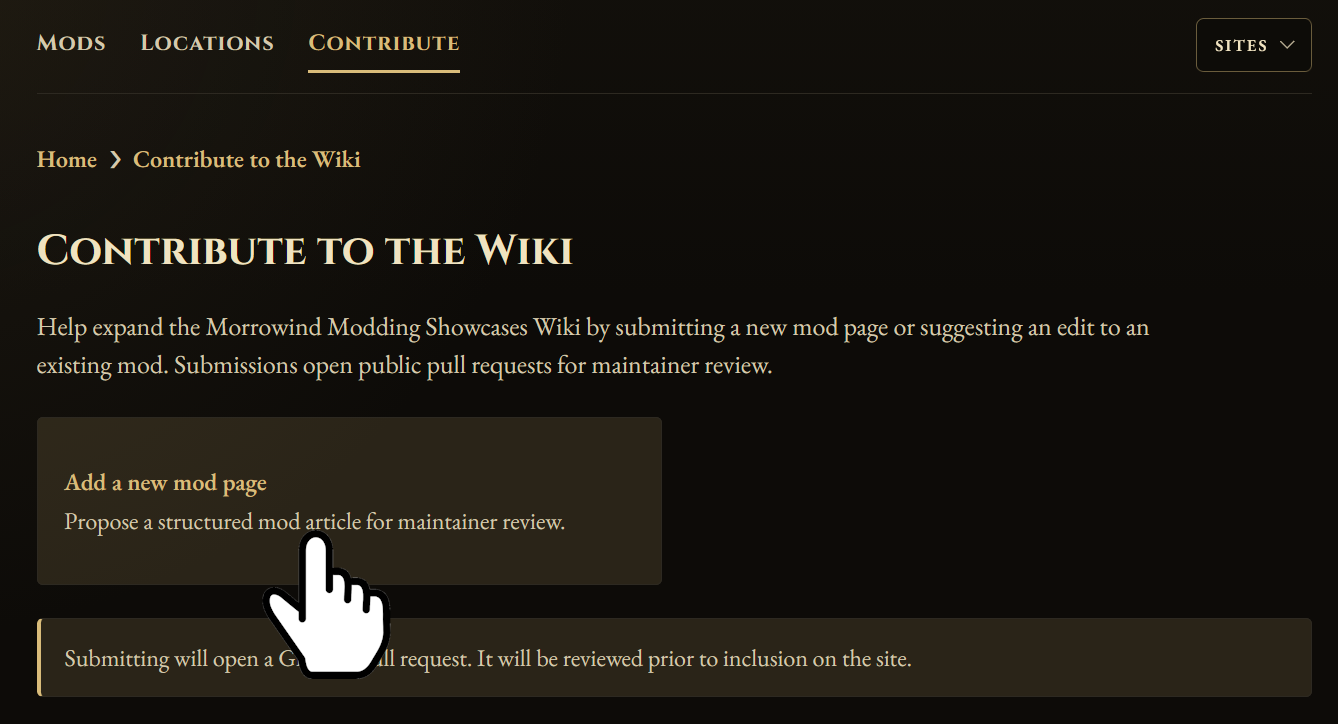
Go to the Contribute section and click “Add a new mod page”.
Contributor
By default, choose a previous external contributor name from the searchable list or enter any new public display name. If you already have a site modder profile, enable Modder profile and select your profile from the results; typed text is not enough until a real profile is selected. Your public name will be included with the pull request and counted on the Contributor Leaderboard after the change is accepted. Select Remember user name if you want this site to prefill the external-name field on this device next time.
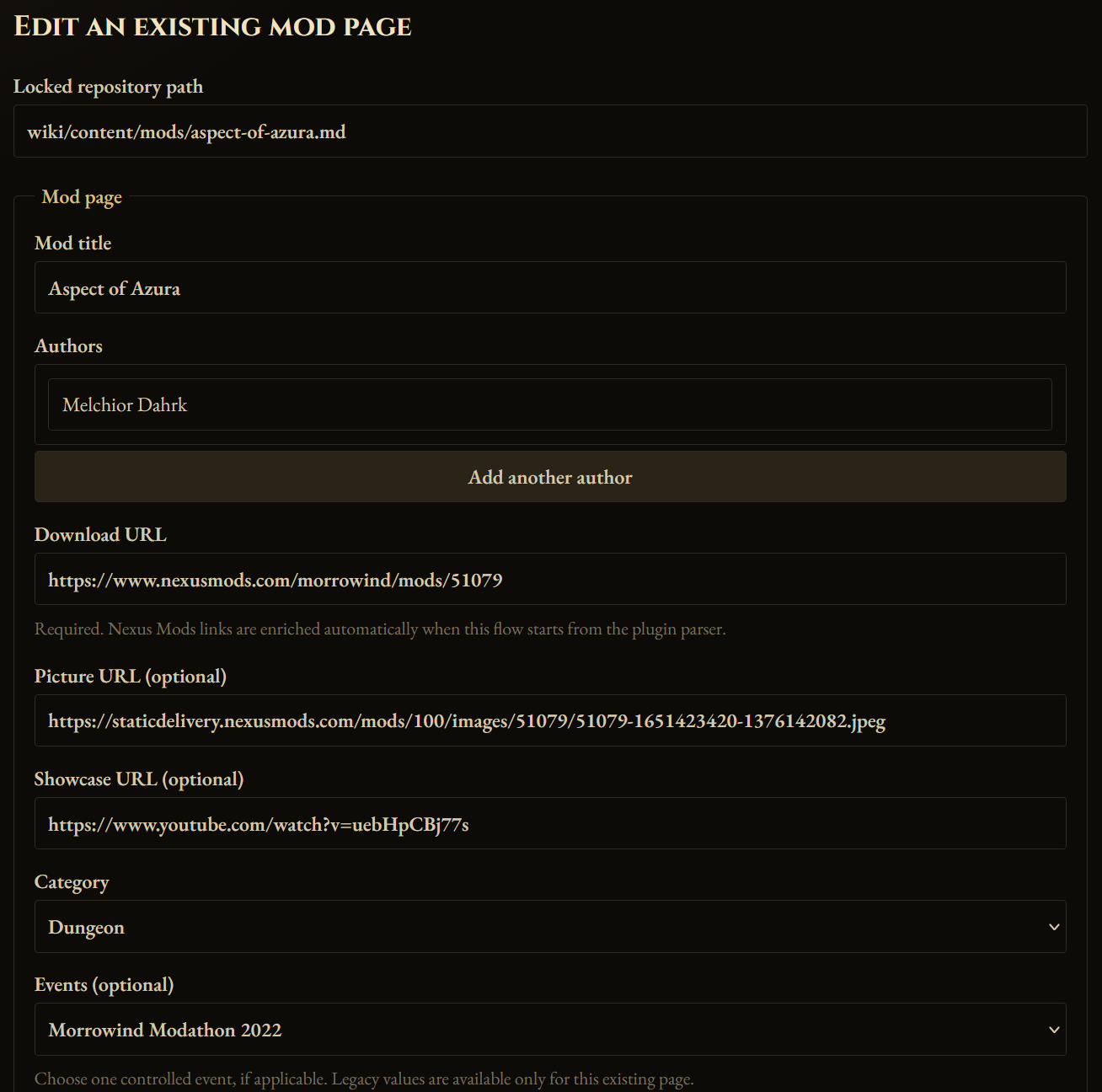
Mod page
All of this information can be gathered directly from the mod page.
Picture URL
This can simply be retrieved by right-clicking an image on the mod page and copying the image link.

Showcase URL
Check for a Showcase video in the Videos tab on Nexus.

Category
Note that these categories align with the Modding event categories and don’t always directly correlate with Nexus categories. Use your best judgment.
Events (optional)
If you’re not certain whether or not a mod was part of a major modding event, then leave this blank.
Map coverage
This is where you will assign modified cells and any new plugin-added locations to the mod.
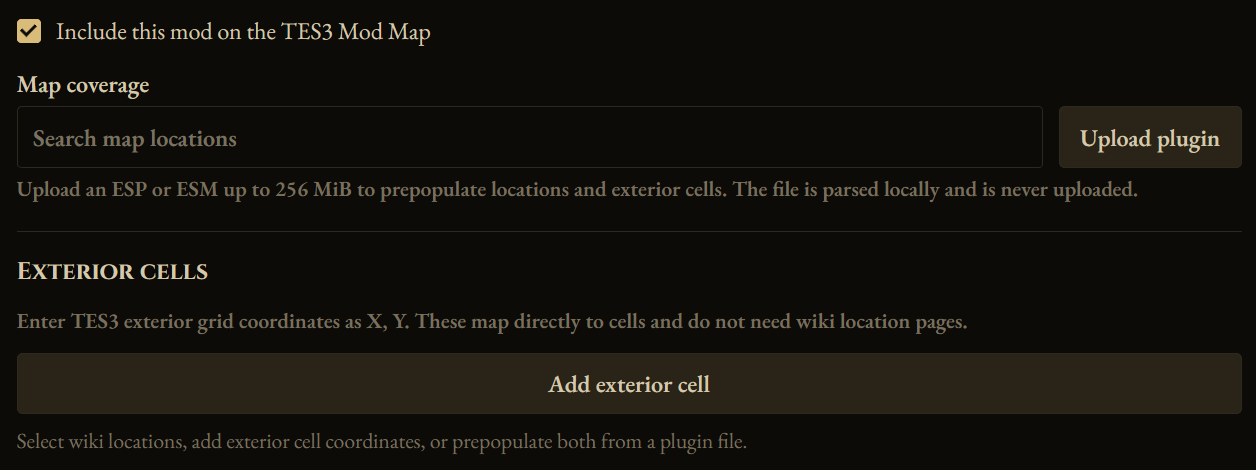
The “Upload plugin” button allows you to select a valid plugin file for the site to parse CELL, LAND, and exterior doormarker data from. You can select the appropriate cells for the mod. Exterior entries preserve whether the plugin contains LAND and the exact modified-reference count, which power the map’s separate Landscape and References filters.
If an interior cell has an exterior doormarker but is not already a map location, an Add location button appears beside it. The cell name, exterior region, and entrance coordinates are filled automatically. Write the required location description; the new location Markdown file will be included in the same pull request as the mod page. Component plugin uploads support the same workflow.
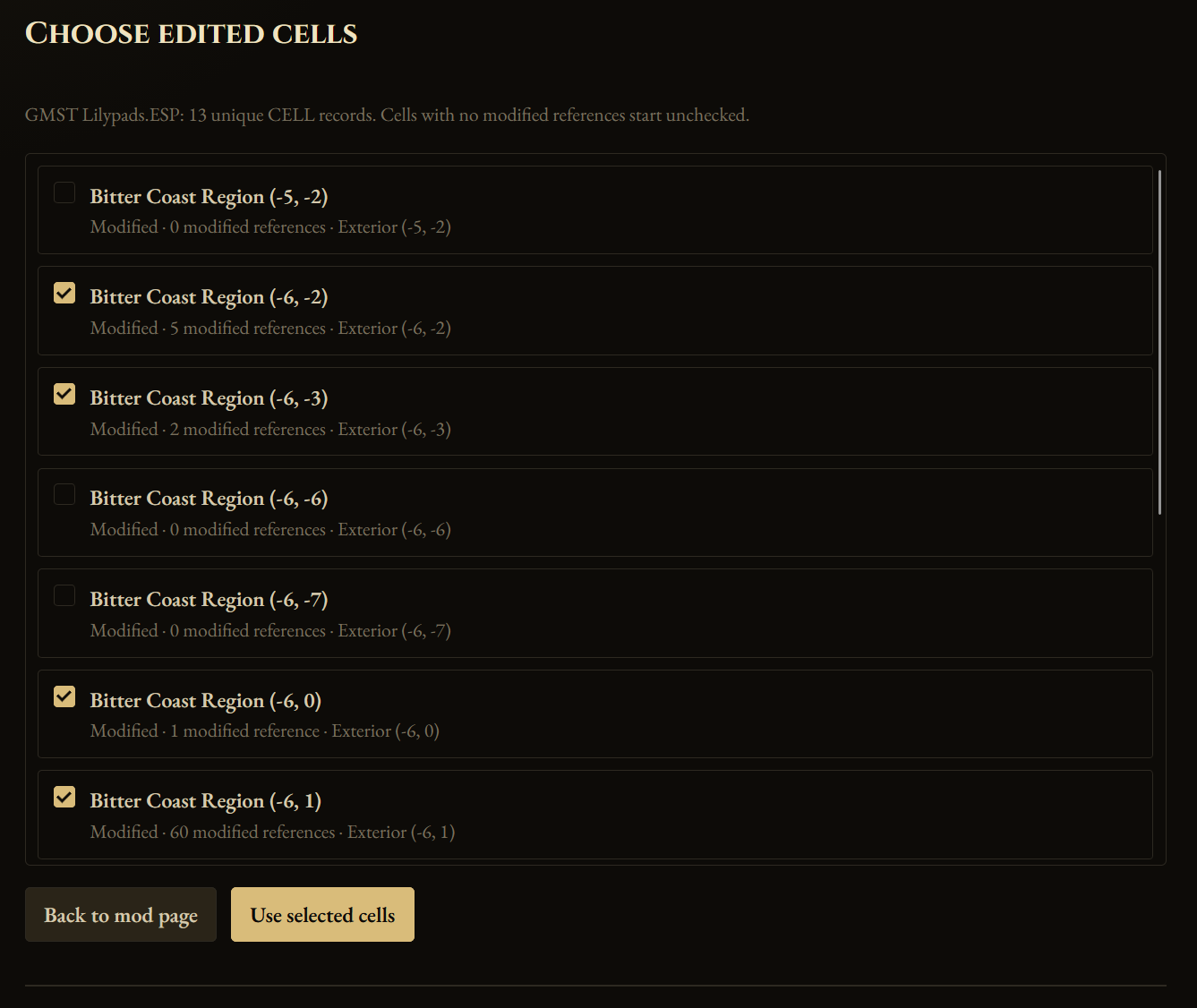
When you are finished selecting cells, press the “Use selected cells” button to return to the previous page.
Article
This section starts with the following suggested text. Replace it with relevant information about the mod while keeping or adapting the structure as needed:
> Extract from mod description
## World Edits
Description of world edits.
## Other Notes
Other notes about the mod.
Example
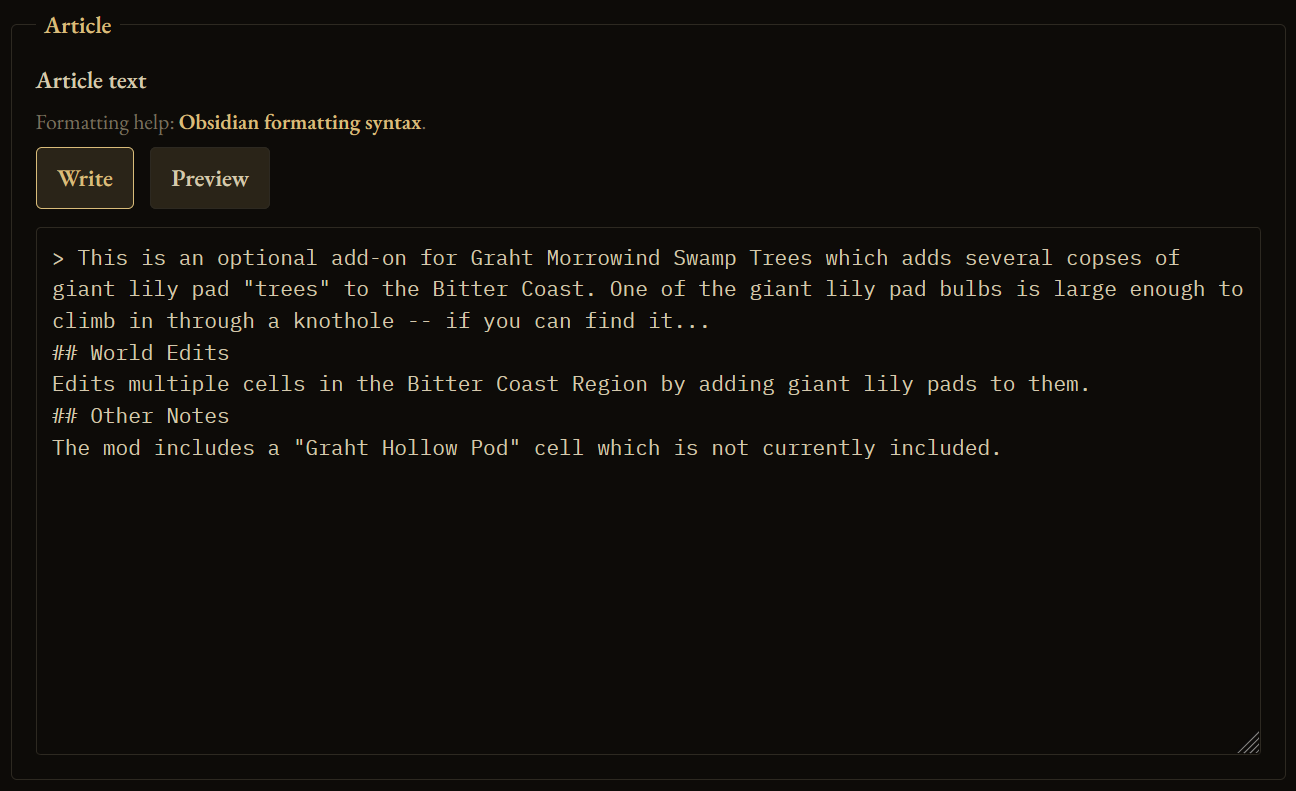
The article opens in Formatted mode, where the rendered text remains editable. Use the icon toolbar for common formatting, or switch to Markdown when you want to edit the source directly.
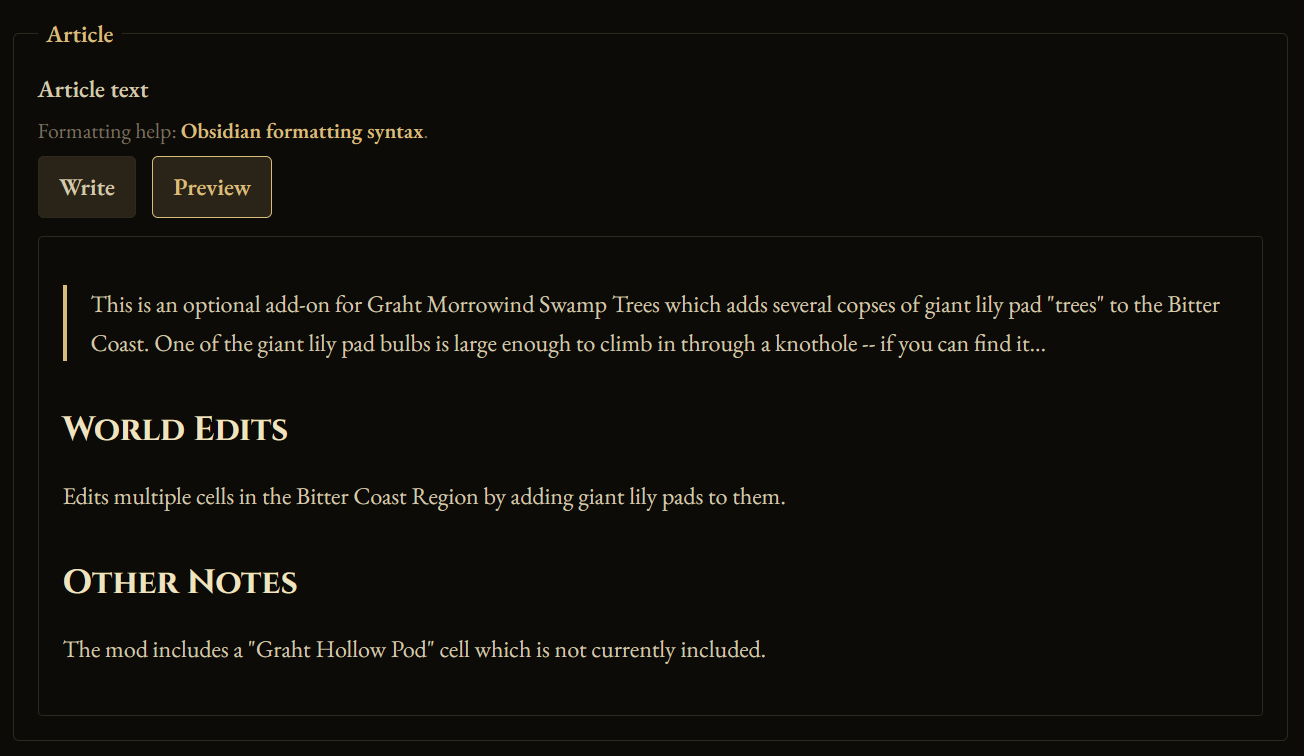
To link another mod or location, type [[ or select the internal-link icon in the toolbar. Continue typing to filter the page list, then select a result. The editor inserts the complete wiki path automatically so the published link reaches the correct page.
A link is provided to the basic formatting syntax for Obsidian.md (the tool behind the wiki). While not all formatting syntax will work on the wiki, it is still a useful resource if you’re not familiar with the Markdown format.
Submitting
When you are finished, press the “Review submission” button at the bottom of the page.

On the review page, you will get an overview of the page’s frontmatter, a preview of the article contents, as well as the raw markdown source. After the Cloudflare check is complete and If everything looks correct, you can click the “Submit for review” button at the bottom of the page. If you need to make any changes, then you can use the “Back to edit” button without losing any progress.
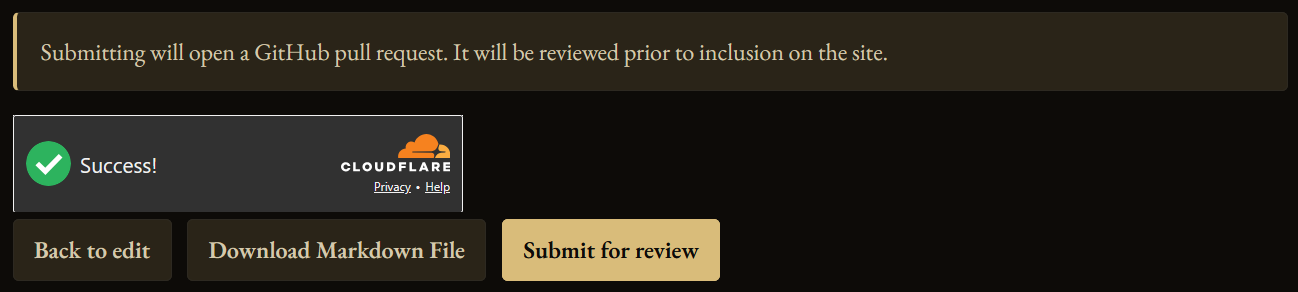
The “Download Markdown File” button is for advanced users who wish to make a large number of edits and create a bulk pull request directly to the GitHub repository.
After you submit, a pull request will be prepared for review by the wiki maintainers. Accepted submissions appear on the Contributor Leaderboard and Recent Changes pages after they are merged.
Thank you for your contribution!

2. Suggest an edit
The other way you can contribute to the wiki is by suggesting an edit to an existing mod page. Do this by clicking the “Suggest an edit” button on any mod page.
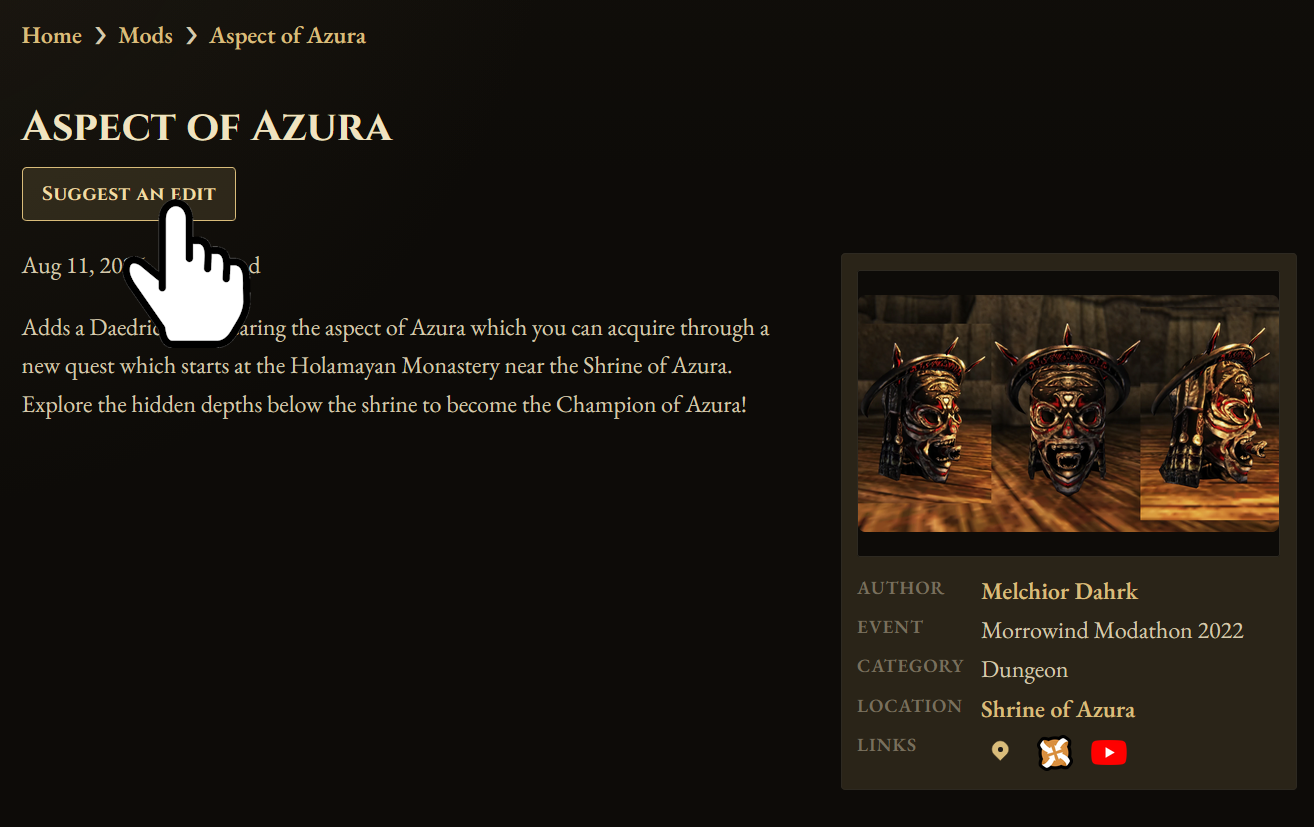
The workflow for editing a page is identical to adding one except that the page contents will be prepopulated.
And that’s all! Thank you for being interested in contributing to this community resource!